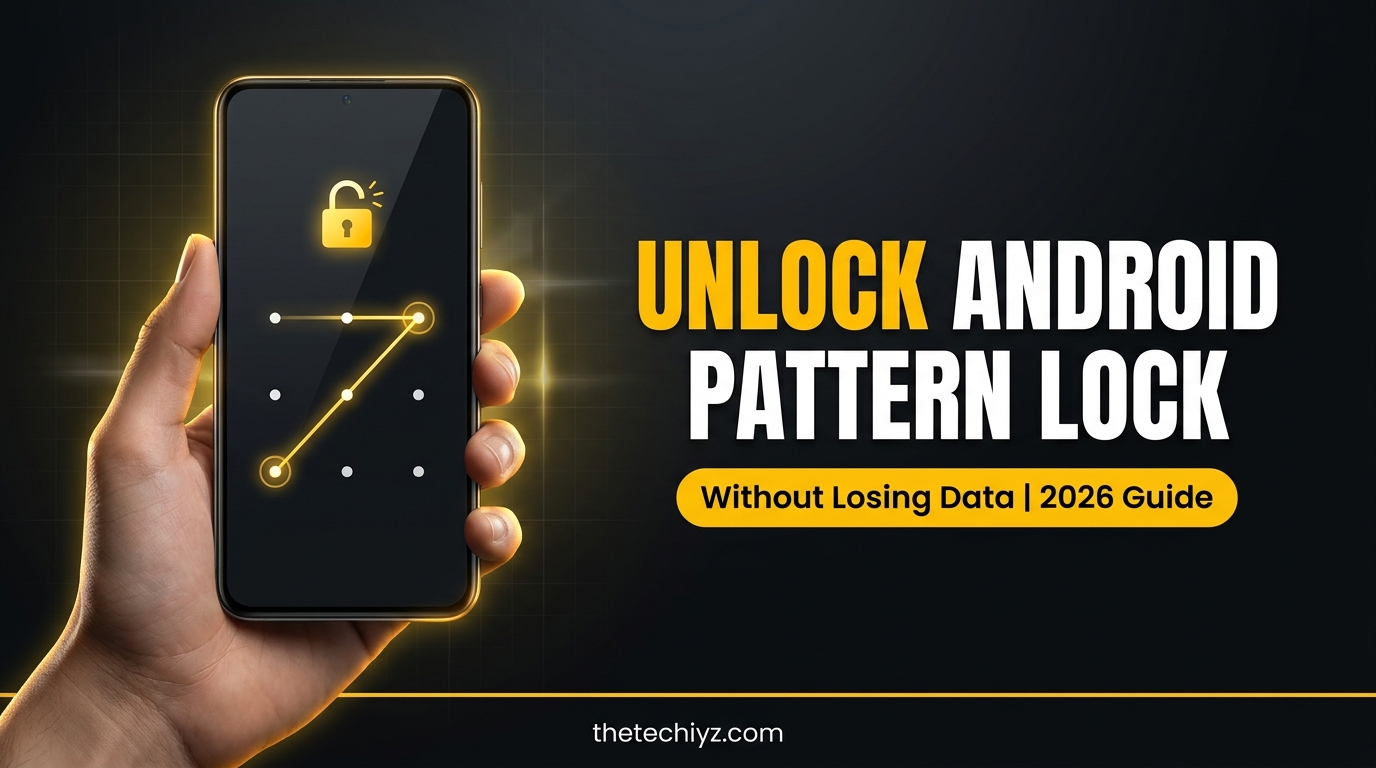
Forgetting your own screen pattern turns a working phone into a paperweight within seconds. The honest answer most guides bury at the bottom is this: on a modern Android phone, there is no secret code, no universal pattern, and no reliable trick that reveals a forgotten one. What you do have are a few legitimate recovery routes, and exactly one of them has a realistic chance of saving your data.
This guide walks through what still works in 2026, which option preserves your files, what happens after the phone restarts, and how to avoid the paid tools that promise more than they deliver. Every method here assumes the phone is yours and you can sign in to the Google or Samsung account already on it, because that requirement is the whole point of Android security.
The short answer: what actually works now
Android phones running recent versions encrypt their storage and tie that encryption to your screen lock. That design is why a forgotten pattern is genuinely difficult to get around, even for the owner. Three routes remain practical:
- Samsung Find My Mobile remote unlock — removes the lock without wiping the phone, but only if you enabled it in advance
- Erasing the phone through Google Find Hub — works remotely, wipes everything
- Factory reset from recovery mode — works with no internet on the phone, also wipes everything
The old “Forgot Pattern?” link that let you sign in with a Google account belonged to Android 4.4 and earlier. If your phone is newer than about a decade old, that option is gone and is not coming back.
Rule these out before you reset anything
A surprising number of lockouts end here, so spend five minutes on this list before you erase a phone you might not need to erase.
Try your fingerprint or face unlock. Biometrics usually stop working after a restart or after several hours without a successful unlock, but if the phone has stayed on, they may still let you in. Get in once and you can change the pattern from Settings immediately.
Try the backup PIN or password. Some phones and work profiles ask you to set a secondary method when you create a pattern. People forget they ever set one.
Check whether it is really the screen lock. If the pattern screen appears only when you open Gallery, WhatsApp or a banking app, that is a separate app lock from the phone’s security settings or a third-party app. Those have their own recovery options and do not require wiping anything.
Stop guessing. Failed attempts trigger longer and longer cooldowns, and some Android phones offer a setting that erases the device automatically after a set number of wrong tries. If that option was switched on, endless guessing becomes the fastest route to data loss.
Think about trusted places and devices. If you previously set up a trusted location or a trusted Bluetooth device, walking home or turning on that smartwatch may unlock the phone on its own.
Method 1: Samsung Find My Mobile remote unlock
This is the only mainstream route that removes a forgotten lock while leaving your photos, chats and apps in place, and it is limited to Galaxy devices. It works only if the groundwork was already done: the phone must have a Samsung account signed in, Remote unlock must have been turned on beforehand in Settings, and the phone must be connected to Wi-Fi or mobile data right now.
- On a computer or another phone, open Samsung Find My Mobile and sign in with the Samsung account linked to the locked phone.
- Pick the correct device from the list on the right, which matters if several Galaxy devices share the account.
- Select Unlock.
- Enter your Samsung account password when prompted to confirm.
- Wait for the confirmation, then set a fresh lock on the phone right away.
Samsung’s own support documentation notes that this clears every screen lock method on the device, including pattern, PIN, password and registered biometrics. Your files stay untouched. If the website reports that remote unlock is switched off, this route is closed and you are looking at a reset.
Method 2: Erase the phone with Google Find Hub
Google renamed Find My Device to Find Hub, and it is switched on by default once a Google account is added to a phone. It can locate a device, secure it, or erase it remotely.
One expectation worth correcting: securing a device through Find Hub locks it and can display a message, but it does not reveal an existing pattern or swap it for a password you choose. When a lock is already set and forgotten, the only button that helps is the one that erases the phone.
- Go to android.com/find from any browser and sign in with the Google account on the locked phone.
- Select the device from the list. It needs power and an internet connection to receive the command.
- Choose the erase option and confirm.
- Wait for the phone to wipe and restart into the setup screen.
Google’s official help page covers the requirements in detail. If the phone is offline, the command sits in the queue and runs whenever it next connects.
Method 3: Factory reset from recovery mode
When the phone has no internet and no working account access, recovery mode is the fallback. It works on essentially every Android device, and it erases everything.
- Power the phone off completely.
- Hold the button combination for your model, usually Volume Up plus Power, sometimes Volume Down plus Power.
- Release when the recovery menu appears, then navigate with the volume keys and select with the power key.
- Choose Wipe data / factory reset and confirm.
- Select Reboot system now once it finishes.
Button combinations vary between Samsung, Xiaomi, Realme, Infinix, Tecno, vivo and Pixel devices, so check your model’s exact combination rather than guessing repeatedly.
Factory Reset Protection: the step that catches people out
A wiped phone is not automatically usable. During setup, Android asks for a Google account that was signed in before the reset. This is Factory Reset Protection, and it exists so a stolen phone cannot simply be erased and resold.
If you remember that Gmail address and password, setup continues normally. If you do not, recover the account through Google’s normal recovery process first. Services and shops that claim to remove this screen for a fee are working around a theft protection feature, which is a good reason to keep your distance. The safe path is proof of purchase and an authorised service centre.
Comparing your options
| Method | Data kept? | What you need |
|---|---|---|
| Samsung Find My Mobile unlock | Yes | Galaxy phone, Samsung account, Remote unlock enabled earlier, phone online |
| Google Find Hub erase | No | Google account details, phone powered on and online |
| Recovery mode reset | No | Physical access, correct button combination, Google account for setup |
| Authorised service centre | Usually no | Proof of ownership and purchase documents |
About the tools that promise no data loss
Search results for this problem are crowded with paid desktop software advertising one-click unlocking with your files intact. Read the fine print and most of them perform a reset anyway, then charge you for a process recovery mode does for free. Others target older or specific chipsets and simply fail on current devices.
There is a sharper risk too. Downloading unknown unlocking utilities and connecting your phone to them can expose your accounts and personal data, which is the same caution worth applying to messaging and privacy habits generally, as covered in our guide on starting a private chat on WhatsApp safely. If a tool claims it can bypass Google account verification after a reset, treat that as a warning sign rather than a feature.
Getting your data back after a reset
A wipe is less painful than it sounds if backups were running. Sign in with the same Google account during setup and you can restore apps, settings, contacts, call history and SMS from a recent Google backup. Photos and videos return through Google Photos if sync was enabled. WhatsApp offers to restore chats from its own Google Drive backup when you verify the same number.
Samsung, Xiaomi and other manufacturers run parallel cloud services, so check those accounts as well before assuming anything is gone. What genuinely disappears is anything that lived only in the phone’s internal storage with no sync: offline downloads, some app data, and files you never copied anywhere.
Set a lock you will not forget again
A six-digit PIN is easier to recall under pressure than a shape, and it resists shoulder-surfing better than a pattern smudged across the screen. Whatever you choose, do three things today: register a fingerprint, note the credentials somewhere safe, and turn on Remote unlock if you own a Galaxy. That last toggle is the difference between a five-minute fix and a full reset.
Also confirm that backups are actually running rather than assuming they are. Check the backup date in Settings, and check that Google Photos shows recent uploads instead of a pending sync warning.
Frequently asked questions
Can I see my old pattern anywhere in my Google account?
No. The lock is stored on the device in a protected form and is never uploaded to your Google account, so nobody can look it up for you.
Will erasing through Find Hub delete my SD card contents?
It may. Behaviour depends on the phone and Android version, and some devices include removable storage in the wipe. Remove the card before resetting if the files matter.
My phone is offline. Can I still erase it remotely?
You can send the command, but it only executes when the device connects to the internet. With no connection at all, recovery mode is the practical option.
Does a reset remove Factory Reset Protection?
No. The account verification appears after the reset, which is the point of the feature. You need the Google account that was on the phone beforehand.
Can a repair shop unlock my phone without wiping it?
Legitimate service centres generally perform a reset and require proof of ownership. Anyone promising an unlock with data intact and no documents should be treated with suspicion.
Where that leaves you
Work through it in order: biometrics and backup PIN first, Samsung remote unlock if you own a Galaxy and enabled it, then Find Hub or recovery mode when a reset is unavoidable. Confirm you can access the Google account on the phone before you wipe anything, because that account is what turns a reset phone back into a usable one. Once you are in, spend two minutes enabling remote unlock and verifying your backups so the next lockout costs you time instead of data.