Sending a first WhatsApp message is easy. Doing it without handing a stranger more information about yourself than you meant to is the part most people never think about.
Whether you are messaging a seller, a new colleague, or someone whose number you were given, a few small choices decide how much they can see about you and how fast you can shut things down if the conversation goes wrong. This guide covers opening a private chat on Android and iPhone, messaging a number you have not saved, what to check before you hit send, and what to do if the other person turns out to be a problem.
Tap the new chat icon in WhatsApp and pick the contact, or use a wa.me link to message a number you have not saved. Before messaging anyone unfamiliar, restrict your profile photo, About and last seen in Settings → Privacy, and remember that your phone number is always visible to whoever you message.
What “private” actually means here
A one-to-one WhatsApp chat is end-to-end encrypted by default. Nobody in the middle — not your network, not WhatsApp — can read the contents.
That is real protection, but it protects the message, not you. Encryption does not hide your number from the person you message, does not stop them screenshotting the chat, and does not verify they are who they claim to be. Privacy in practice comes from the settings you choose and the judgement you use, not from the padlock alone.
Starting a chat with someone already in your contacts
This is the simple case, and the steps barely differ between platforms.
Android
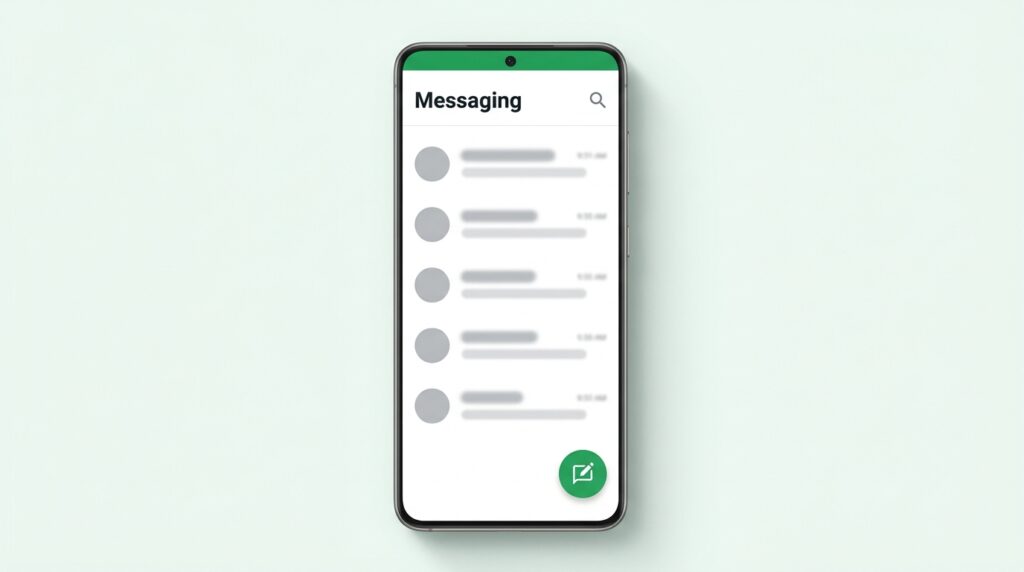
- Open WhatsApp on the Chats tab.
- Tap the green new chat button in the lower-right corner.
- Scroll or use the search box at the top to find the person.
- Tap their name to open the chat, then type and send.
iPhone
- Open WhatsApp and go to the Chats tab.
- Tap the new chat icon in the top-right corner.
- Search for or scroll to the contact.
- Tap their name and start typing.
If someone you know does not appear, they may not have WhatsApp on that number, or the number may be saved in a format your phone does not recognise. Save it in full international format — country code first, no leading zero, no spaces or dashes — and pull down on the contact list to refresh.
Messaging a number you have not saved
You do not have to add someone to your address book just to send one message. WhatsApp’s official Click to Chat feature opens a conversation straight from a link.
The format is wa.me/ followed by the full number in international format, with no plus sign, zeros, brackets, spaces or dashes. Open that link in your browser and WhatsApp offers to start the chat.
Two things to be clear about before you use it. First, this only works with a number you already legitimately have — it is not a way to find anyone’s number, and no tool or website that claims otherwise is trustworthy. Second, the moment you send that message, your own number is visible to them, along with whatever your privacy settings allow them to see. Click to Chat is a convenience feature, not an anonymity feature.
Check who you are actually talking to
Impersonation is common, and it is easiest to spot before you have invested anything in the conversation.
- Confirm through a second channel. If a “friend” or “family member” messages from an unfamiliar number, call them on the number you already had. Do not verify a suspicious identity by asking the suspicious account.
- Treat urgency as a warning sign. A real relative asking for help can wait five minutes for you to ring them. A scammer cannot afford for you to.
- Look at the account, not the photo. Profile pictures and names are trivial to copy. A brand-new account with a stock-looking photo and no history deserves more caution, not less.
- Match the number to the business. For a company, take the WhatsApp number from its official website or receipt rather than from a search result or a social media reply.
Set your privacy before you message someone unfamiliar
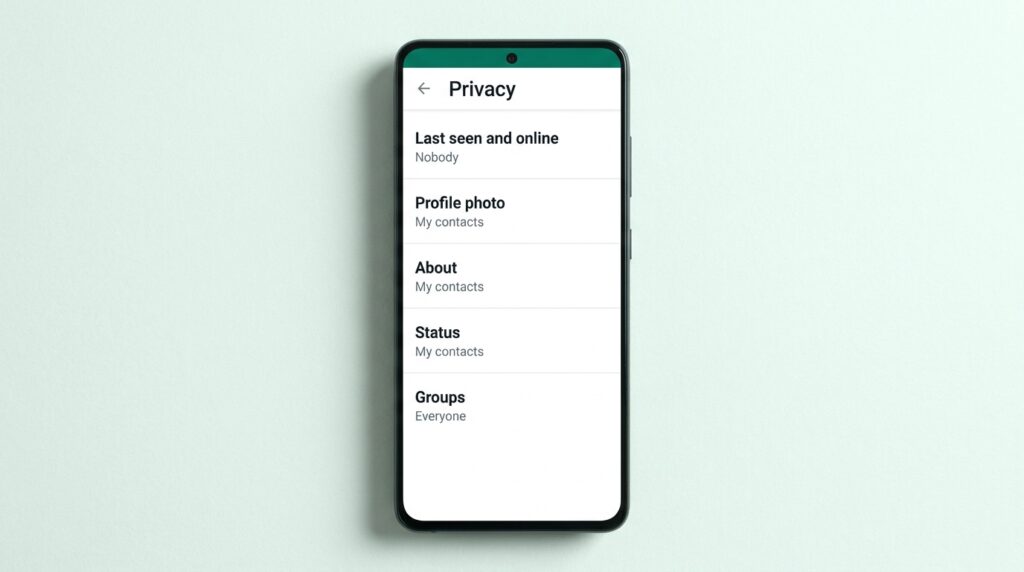
Once you message a stranger, they can look you up. It costs a minute to decide what they find. Open Settings → Privacy — on some app versions this sits inside Settings → Account → Privacy — and work down the list.
- Profile photo. Setting this to My contacts means people who are not saved in your phone see only a blank placeholder.
- About. The same options apply, and it is worth checking what yours currently says.
- Last seen and online. Limiting this stops unfamiliar contacts tracking when you are awake and active. Note the trade-off: hide your last seen and you lose the ability to see other people’s.
- Status. Status updates go to your contacts, but you can exclude specific people.
- Groups. Restricting who can add you prevents a new contact dropping you into a group full of numbers you do not know.
Also turn on two-step verification in Settings → Account. It adds a six-digit PIN that is required before your number can be registered on a new device, which is the single most useful protection against someone trying to take over your account.
What to avoid in a new conversation
Most WhatsApp trouble arrives through the same few doors.
- Never share a verification code. If someone asks you to forward a six-digit code you just received, they are trying to move your account to their phone. WhatsApp will never ask for it in a chat, and no genuine contact needs it.
- Do not tap unexpected links. Prize notifications, delivery-fee messages and job offers with a link attached are the standard opening move. Type a company’s address into your browser yourself instead.
- Keep financial and identity details out of chat. Card numbers, bank details, CNIC or passport images and one-time passwords do not belong in a new conversation, however reasonable the reason sounds.
- Do not install anything a chat partner recommends. Modified WhatsApp versions and “extra feature” APKs are a common way for accounts to be stolen.
If the conversation becomes unwanted or suspicious
You are never obliged to keep replying, and WhatsApp gives you three levels of response.
Mute or leave it. For an ordinary conversation that has just run its course, silence works. There is no delivery obligation and no need to explain yourself.
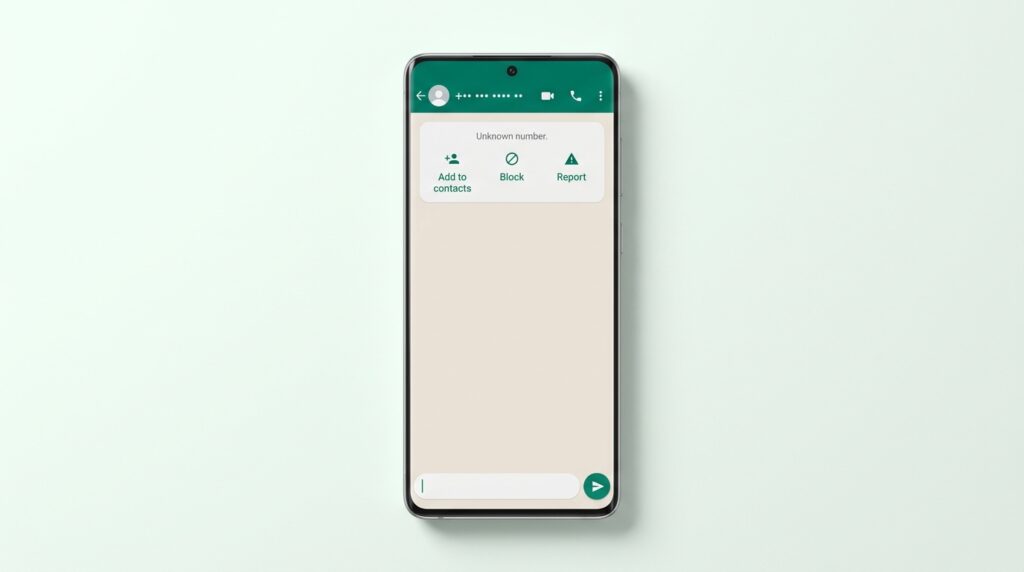
Block. Blocked contacts can no longer message or call you, and your last seen, online status, status updates and profile photo changes stop being visible to them. Open the chat, tap the contact name or number at the top, and choose the block option. For a number you have never saved, WhatsApp shows a block option directly inside the chat.
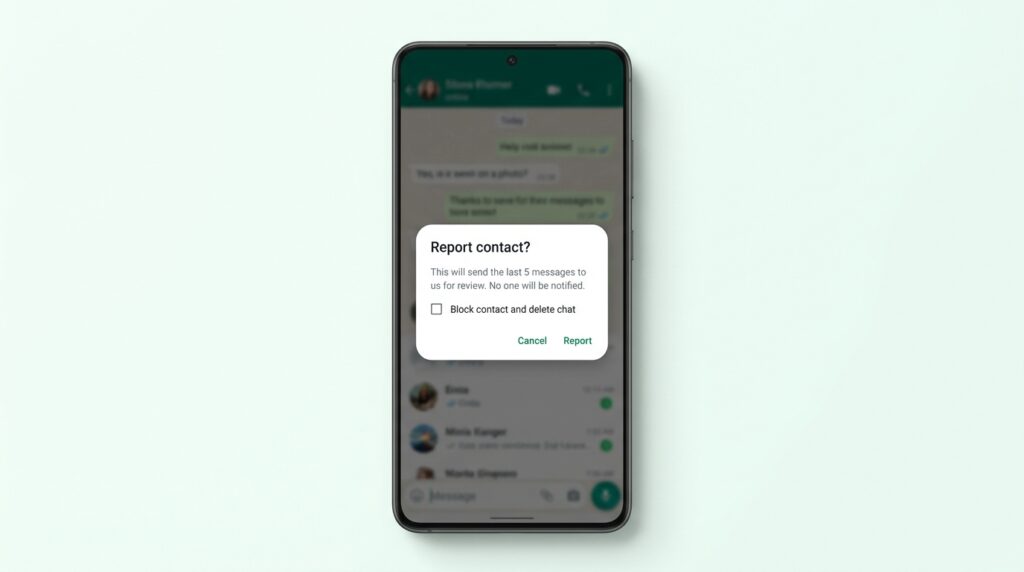
Report. If the account is sending scams, threats or abuse, report it as well. Open the chat, tap the name or number at the top, and choose to report the contact — WhatsApp’s guidance on blocking and reporting contacts explains each route. When you report, WhatsApp receives the most recent messages that account sent you, and the account is not told it was reported.
If you feel that you or anyone else is in immediate danger, contact your local emergency services rather than relying on in-app tools.
FAQs
Can I message someone on WhatsApp without them seeing my number?
No. Your phone number is shown to anyone you message directly. If you need to stay anonymous, WhatsApp is the wrong tool for that conversation.
Does blocking someone tell them they have been blocked?
WhatsApp sends no notification. The person may work it out over time from what they can no longer see, but they are never informed.
Someone I do not know messaged me first. What should I do?
Do not reply to confirm the number is active. Read what is there, and if it looks like spam or a scam, block and report it from inside the chat.
Are disappearing messages the same as a private chat?
No. They remove messages from both sides after a set period, but the recipient can still screenshot or forward them beforehand. Treat it as tidying, not secrecy.
The short version
Starting a private chat safely comes down to three habits: decide what strangers can see about you before you message them, confirm who you are actually talking to, and act early when something feels off. The tools are all built in — privacy settings, two-step verification, block and report — and none of them takes more than a minute.
Set them up once and the next unfamiliar conversation is far less risky by default. If you like working through settings like this, our step-by-step How To guides cover more of the same ground across other apps and devices.