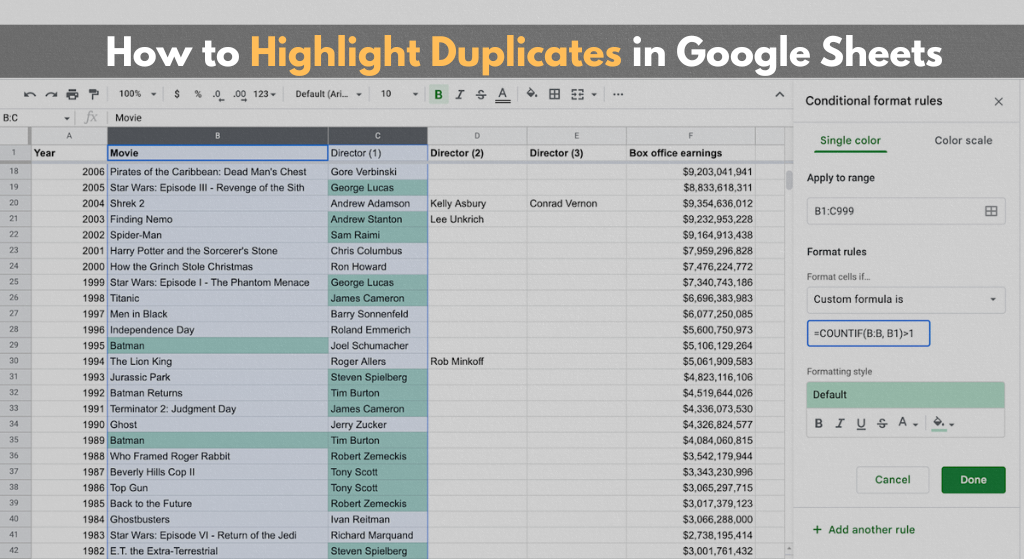
Managing data in Google Sheets becomes exponentially easier when you can quickly identify duplicate entries. Whether you’re cleaning up a contact list, analyzing sales data, or maintaining inventory records, knowing how to highlight duplicates is an essential skill that can save you hours of manual work.
Why Identifying Duplicates Matters
Duplicate data can skew your analysis, waste storage space, and lead to costly errors in business decisions. Imagine sending the same promotional email twice to a customer or counting the same sale multiple times in your revenue report. Learning to highlight duplicates helps you maintain data integrity and make more accurate decisions.
Using Conditional Formatting to Highlight Duplicates
Conditional formatting is the most popular and versatile method for highlighting duplicates in Google Sheets. This feature automatically applies formatting rules to cells based on their content, making it easy to spot duplicate values at a glance.
Step 1: Select Your Data Range
Begin by opening your Google Sheets document and locating the data you want to check for duplicates. Click on the first cell of your data range and drag your mouse to the last cell to select the entire area.
If you want to check an entire column for duplicates, simply click on the column letter at the top. For example, clicking “A” selects the entire column A. You can also select multiple columns by clicking and dragging across the column letters.
Step 2: Access the Conditional Formatting Menu
Once your data range is selected, navigate to the top menu bar and click on “Format.” A dropdown menu will appear with various formatting options.
From this dropdown menu, locate and click on “Conditional formatting.” This action opens the conditional formatting panel on the right side of your screen, which is where you’ll configure the rules for highlighting duplicates.
Step 3: Configure the Format Rules
In the conditional formatting sidebar panel, you’ll see a section labeled “Format rules.” This is where you define the conditions that trigger the highlighting.
Look for the dropdown menu that says “Format cells if…” and click on it. Scroll through the options until you find “Custom formula is” near the bottom of the list. Select this option.
Step 4: Enter the Duplicate Detection Formula
After selecting “Custom formula is,” a text field appears where you can enter your formula. Type in the following formula:
=COUNTIF($A$1:$A$100,A1)>1
Let me explain what this formula does. The COUNTIF function counts how many times a value appears in a specified range. The dollar signs in $A$1:$A$100 create absolute references, meaning this range stays fixed as the formula applies to each cell. The A1 without dollar signs is a relative reference that adjusts for each row. When the count is greater than 1, the cell contains a duplicate.
Make sure to adjust the range to match your actual data. If your data is in column B from rows 1 to 50, use $B$1:$B$50 instead. If your data spans from row 5 to row 200 in column C, use $C$5:$C$200.
Step 5: Choose Your Highlighting Style
Below the formula field, you’ll see formatting options that determine how duplicates will appear. Click on the color palette icon to choose a background color for your duplicate cells.
Light red or yellow backgrounds work particularly well because they draw attention without making the text difficult to read. You can also modify the text color, make the text bold, or apply other formatting styles.
Click on the “Text color” option if you want to change the color of the text itself. You might choose to make duplicate values appear in red text on a white background, for example.
Step 6: Apply the Formatting Rule
Once you’ve configured your formula and chosen your formatting style, click the “Done” button at the bottom of the conditional formatting panel.
Google Sheets will immediately apply the formatting to your selected range. Any cells containing duplicate values will now be highlighted according to the style you chose. The formatting updates automatically, so if you add new duplicate values to your range later, they’ll be highlighted instantly.
Step 7: Review and Adjust if Needed
After applying the conditional formatting, carefully review your spreadsheet to ensure the duplicates are highlighted correctly. If something doesn’t look right, you can edit the rule by clicking on the highlighted cells and opening the conditional formatting panel again.
To modify your rule, click on the pencil icon next to the rule in the conditional formatting panel. To remove the formatting entirely, click on the trash can icon.
Understanding the Results
Once your conditional formatting is active, every cell in your selected range that contains a duplicate value will be highlighted. This includes all instances of the duplicate, not just the second occurrence. So if the value “John Smith” appears three times in your list, all three cells will be highlighted.
This visual feedback makes it easy to scan through large datasets and quickly identify which values are repeated. You can then decide whether to keep, delete, or consolidate these duplicate entries based on your specific needs.
Tips for Better Results
Before applying conditional formatting, make sure your data is clean and consistent. Extra spaces, different capitalization, or slight spelling variations can prevent duplicates from being detected. For example, “John Smith” and “john smith” would be treated as different values.
If you’re working with a very large dataset, consider checking for duplicates in smaller sections rather than applying one rule to thousands of rows. This approach helps Google Sheets process the formatting more quickly.
Remember that conditional formatting is dynamic and non-destructive. It doesn’t change or delete your data; it simply provides visual indicators. Your original data remains intact, giving you the flexibility to review duplicates carefully before taking any action.
Conclusion
Highlighting duplicates in Google Sheets using conditional formatting is a straightforward process that significantly improves your ability to manage and clean data. By following these seven steps, you can quickly identify duplicate entries in any dataset, from small contact lists to large sales records. This method gives you immediate visual feedback and updates automatically as your data changes, making it an invaluable tool for maintaining data quality in your spreadsheets.